Google Ads Transparency Center: The Ultimate Guide
Last updated: February 2026 · 15 min read
Google Ads Transparency Center is one of the most underused tools in a marketer's arsenal. While everyone knows about Meta Ad Library, few realize that Google offers a similar — and in many ways more powerful — database covering Search, Display, YouTube, Shopping, Gmail, and Maps ads. This guide covers everything you need to know, from basic navigation to advanced export techniques.
Key takeaways (and the fastest workflow)
- Best way to find competitors: search by domain to avoid the legal-entity naming problem.
- Best way to find winners: prioritize ads that look long-running. For exact timing (Days Running, First Shown, Last Shown), use Single Ad Mode in Ads Insight Pro.
- Best way to analyze at scale: export ads to a spreadsheet and group by format, region, landing domain, and (for image ads) OCR-extracted copy. Jump to export section →
- Quick single-ad check: on a single ad detail page, Ads Insight Pro can show Ad Running Status directly in the popup (no export). See Single Ad Mode →
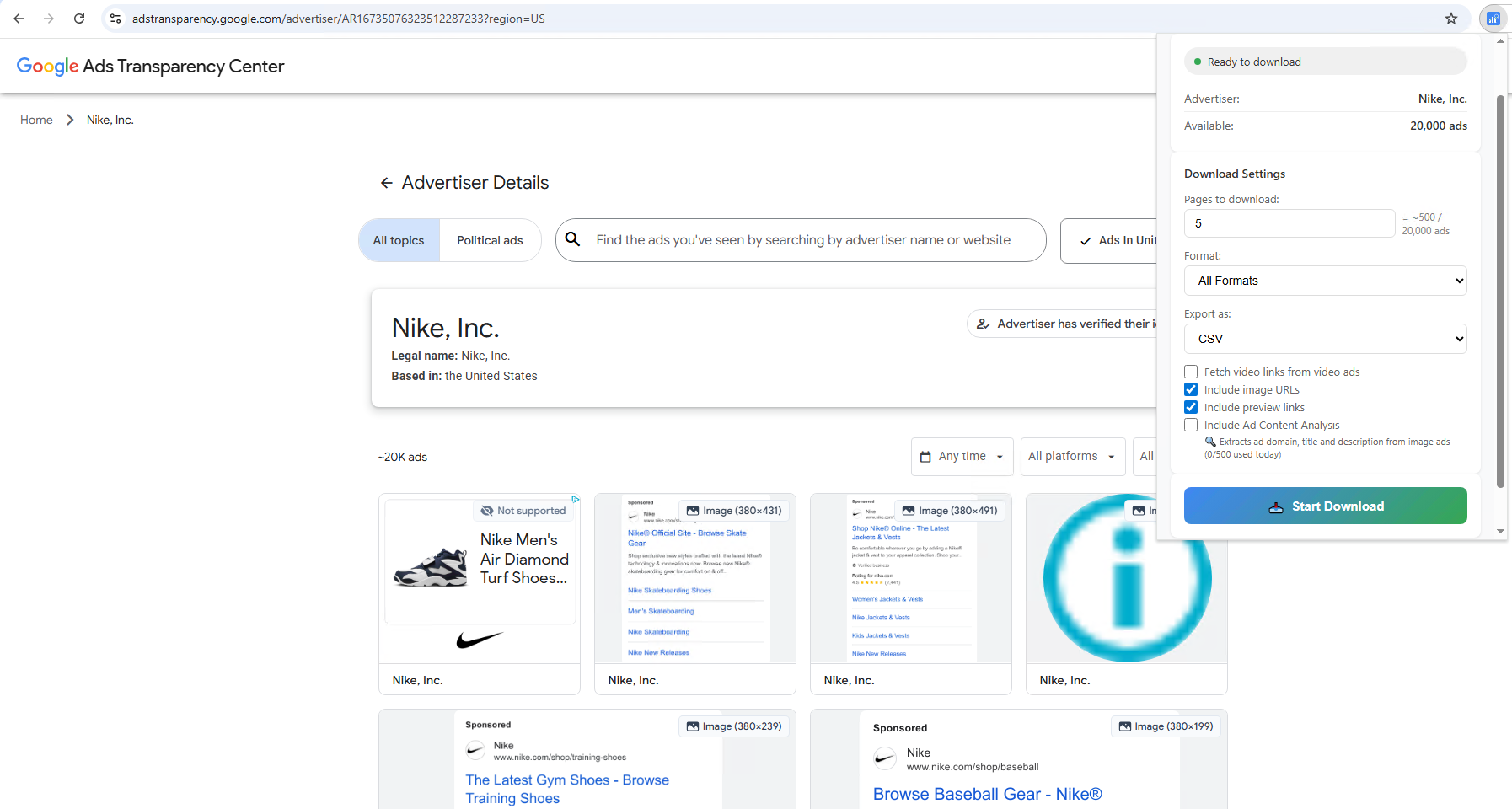
Tip: Install Ads Insight Pro, open Google Ads Transparency Center, configure download settings in the popup, then click “Start Download”.
📑 Table of Contents
What Is Google Ads Transparency Center?
Google Ads Transparency Center is a free, public, searchable database of all advertisements running across Google's platforms. Launched in March 2023, it allows anyone — no Google Ads account required — to look up any verified advertiser and see every ad they're running.
It covers ads across:
- Google Search — Text ads that appear in search results
- YouTube — Video ads, including pre-roll, mid-roll, and display overlays
- Google Display Network — Banner and image ads across millions of websites
- Google Shopping — Product listing ads
- Google Maps — Local business ads
- Google Play — App promotion ads
- Gmail — Sponsored email ads
💡 Key difference from Meta Ad Library: While Meta's Ad Library only shows social feed ads, Google's Transparency Center reveals the full breadth of an advertiser's strategy across search, video, display, shopping, and more — making it significantly more valuable for competitive intelligence.
Why does it exist?
Google created the Transparency Center primarily for regulatory compliance (EU Digital Services Act) and public trust. It was originally focused on political ad accountability but quickly became a gold mine for marketers. In May 2025, Google further expanded it by adding "Payer Name" disclosures — showing not just who runs the ad but who pays for it — and from June 2025, advertisers can edit the displayed payer name in their verification settings.
How to Access Google Ads Transparency Center
There are two ways to get there:
Method 1: Direct URL
Go to adstransparency.google.com and use the search bar to find any advertiser or domain.
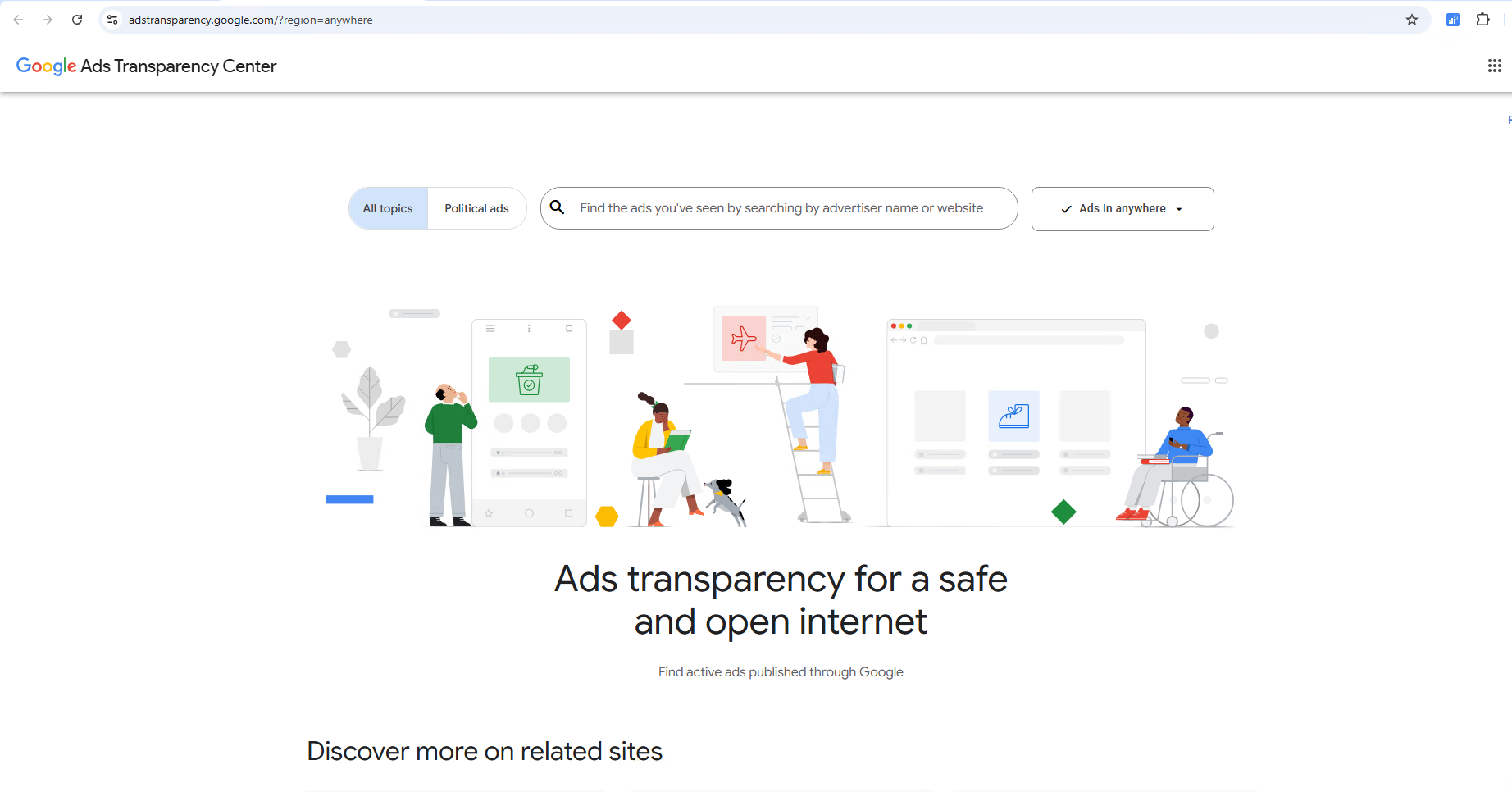
The main search interface allows you to find ads by business name or website URL.
Method 2: "About This Ad" (From Any Google Ad)
When you encounter a Google ad in the wild (Search results, YouTube, Display network, etc.):
- Click the three-dot menu (⋮) next to the ad
- Select "About this ad" or "My Ad Center"
- Click "See more ads by this advertiser"
This takes you directly to that advertiser's page in the Transparency Center — and it's often the easiest way to find advertisers whose legal entity name differs from their brand name.
4 Ways to Search in the Transparency Center
1. Search by Domain
Type a website URL (e.g., amazon.com) into the search bar. This shows all ads that link to that domain, regardless of which entity is running them. This is the most reliable search method because it bypasses the legal-name problem entirely.
Best for: Finding all ads driving traffic to a specific website.
2. Search by Advertiser Name
Type the advertiser's name (e.g., "Nike"). Google will show a dropdown of matching verified advertisers. Click on one to see their ads.
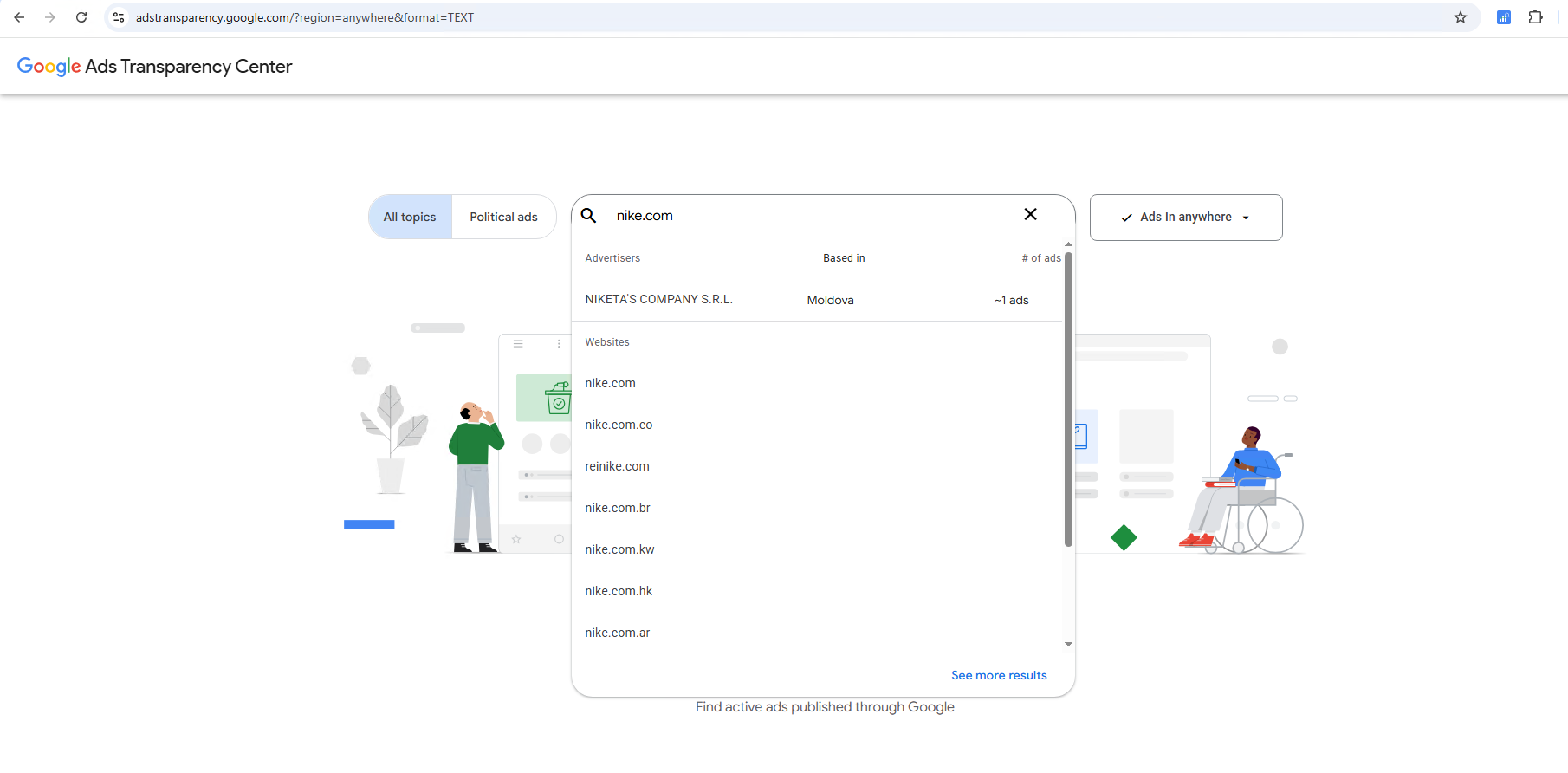
The search dropdown shows both verified advertiser names and website domains.
⚠️ Gotcha: Many brands advertise under their legal entity name, not their consumer-facing brand. For example, MailChimp ads might appear under "Intuit Ltd." If you can't find a brand, try their website's footer for the legal entity name, or use the domain search method instead.
3. Brand Aggregation Page
For large brands with multiple advertiser accounts (e.g., different regions or product lines), Google groups them into a brand aggregation page. When you search for a brand like "Samsung" or "P&G", you may see a page that lists multiple advertiser accounts under one umbrella.
Best for: Understanding a brand's full advertising footprint across regions and subsidiaries.
4. Single Ad Detail Page
Each individual ad has a detail page showing its creative, the advertiser who runs it, and other metadata. You can reach it by clicking on any ad in the Transparency Center.
The URL format is: adstransparency.google.com/advertiser/AR.../creative/CR...
Best for: Investigating a specific ad you've spotted in the wild.
💡 Pro workflow: If you're on a single ad detail page, Ads Insight Pro can show Ad Running Status (Days Running, First Shown, Last Shown, Currently Active) directly in the extension popup — no export required. See Single Ad Mode →
Understanding the Interface
Once you're on an advertiser's page, you'll see their ads displayed in a grid. Above the grid, there are several filters:
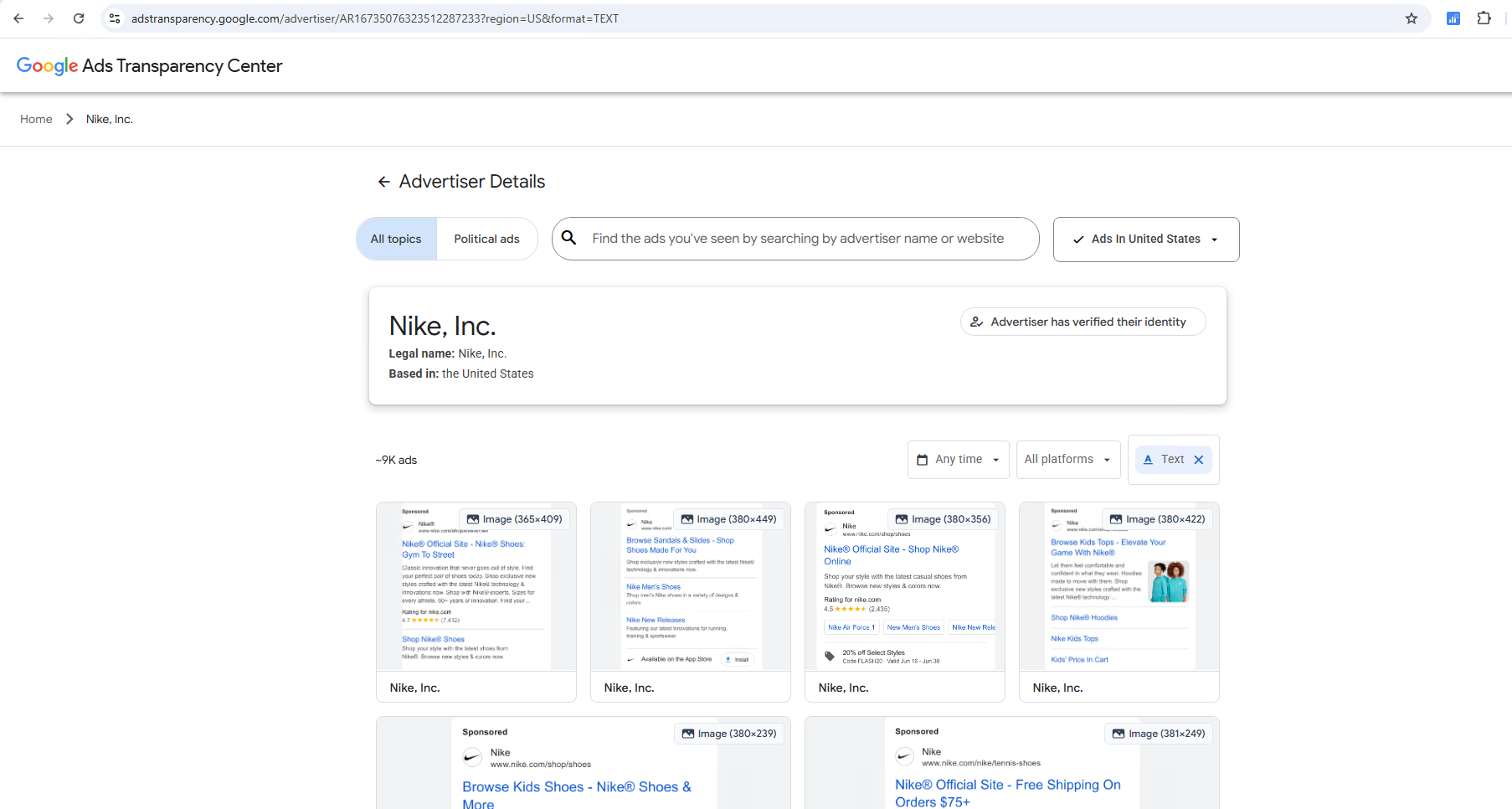
Master these filters to find the exact ads you're looking for.
Region Filter
Filter by the country or region where ads are being shown. Select "Anywhere" to see all ads globally, or choose specific countries. This is powerful for understanding regional advertising strategies.
Date Range
Filter by date using presets (Today, Last 7 Days, Last 30 Days) or a custom date range. You can also select "Anytime" to see all available historical data — for political ads, this goes back to 2018. Non-political ads are retained for a shorter period, but the exact retention window varies.
Ad Format Filter
Filter by ad type:
- Text Ads — Search ads with headlines and descriptions
- Image Ads — Display/banner ads
- Video Ads — YouTube and display video ads
Platform Filter
Filter by where the ad runs: Google Search, YouTube, Google Maps, Google Play, Google Shopping, or all platforms.
Ad Count
At the top of the results, you'll see the total number of ads matching your filters (e.g., "~1.2K ads"). This number itself is valuable intelligence — a high ad count suggests an aggressive advertising strategy.
What Data You Can See (and What You Can't)
✅ What you CAN see
- Ad creative — Full text ads (headlines, descriptions, sitelinks), display images, and video thumbnails
- Advertiser identity — Verified legal name and country. Some ads also display a payer name (introduced in 2025), but this field is not always present
- Ad format — Whether it's text, image, or video
- Target region — Where the ad is being shown
- Last shown date — The ad detail page displays when the ad was last shown. Note: there is no "First shown" date on the page itself, but export tools like Ads Insight Pro can calculate run duration from underlying data
- Platform — Where the ad appears (Search, YouTube, etc.)
- Ad volume — Total number of active ads per advertiser
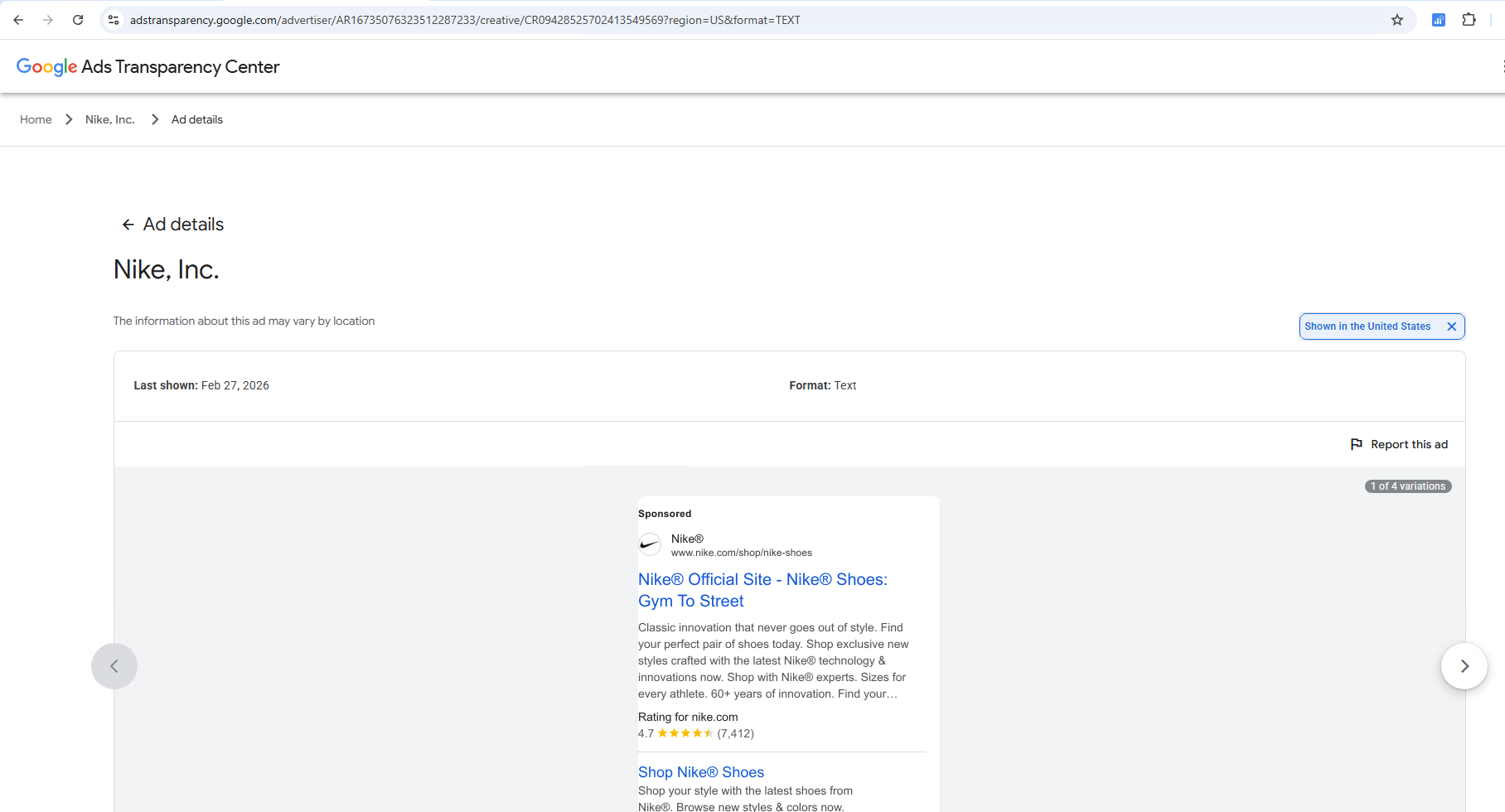
The ad detail view shows the creative, last shown date, ad format, and the verified advertiser name.
❌ What you CANNOT see
- Targeting keywords — No information about what search terms trigger the ads
- Budget/spend — No information about ad spend (except for EU political ads)
- Performance metrics — No click-through rates, impressions, or conversion data
- Audience targeting — No demographic or interest targeting information
- Bidding strategies — No information about how they bid
- Landing page content — You can see the target domain, but not the full landing page URL (for image/video ads)
⚠️ Important limitation: Only verified advertisers appear in the Transparency Center. If an advertiser hasn't completed Google's verification process, their ads won't show up. Most serious advertisers are verified, but smaller businesses and new advertisers may be missing.
7 Practical Use Cases
1. Competitor Ad Copy Research
Goal: Discover what messaging your competitors use in their search ads.
How:
- Search for your competitor's domain
- Filter by Text Ads format
- Review their headlines and descriptions
- Look for patterns: What value propositions do they emphasize? What CTAs do they use? Do they mention pricing?
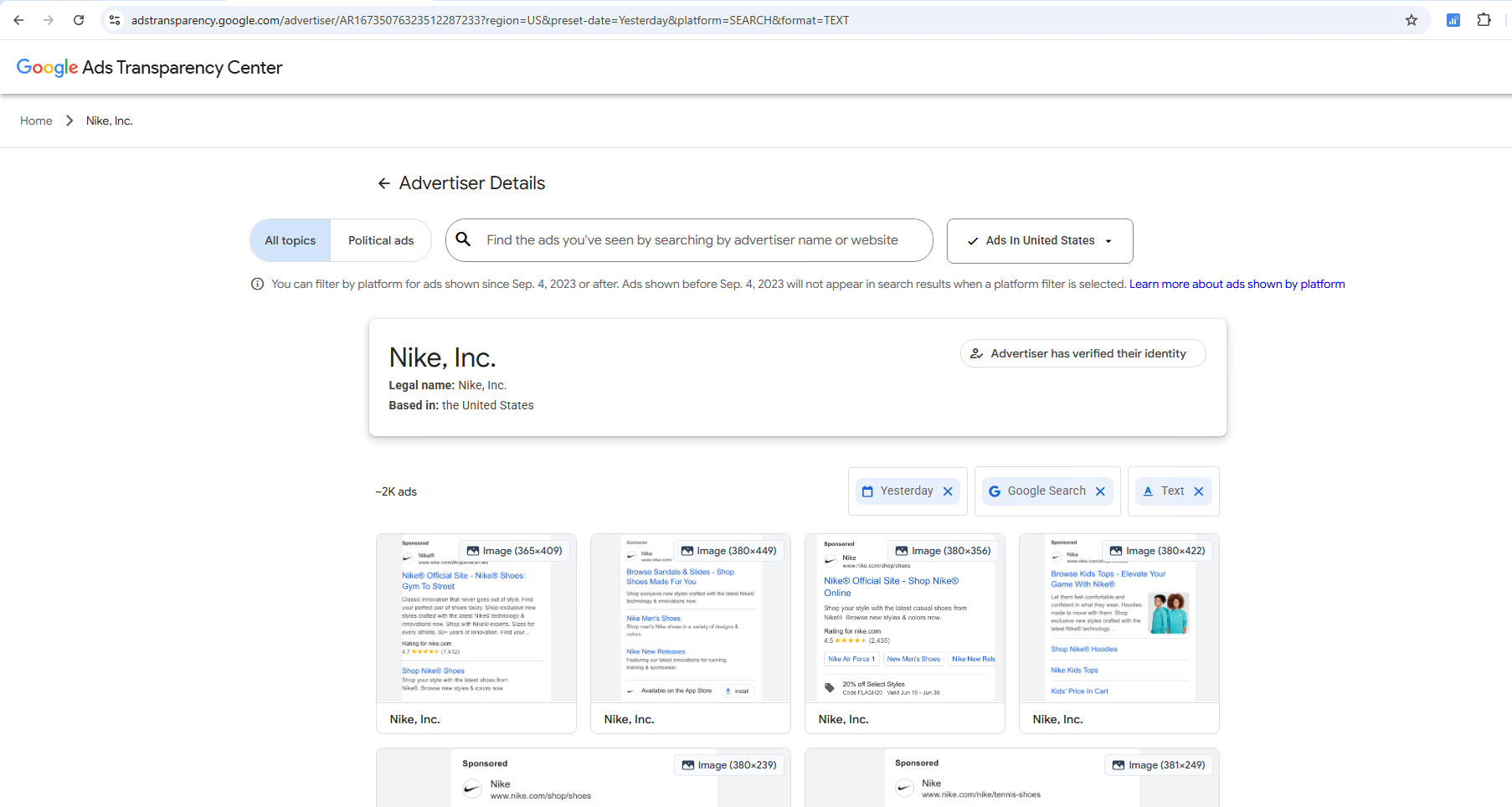
Analyzing text ad variations helps you understand competitor messaging strategies.
What to look for: Ads that have been running for 30+ days are likely profitable — these are your "creative winners" worth studying.
2. Display Ad Creative Inspiration
Goal: Find design patterns and visual strategies for your display campaigns.
How:
- Search for top advertisers in your niche (or adjacent niches)
- Filter by Image Ads
- Study the visual hierarchy: What catches your eye first? What's the ratio of image to text?
- Note common themes: Are they using lifestyle imagery, product shots, or illustrations?
One challenge with image ads is that you can see the creative but can't easily extract the text or landing page URL from the image. This is where Ad Content Analysis becomes valuable — it uses OCR to extract structured fields like ad domain, title, description, and a confidence score from image ads, so you can analyze creatives at scale.
3. Regional Advertising Strategy Analysis
Goal: Understand how competitors adapt their advertising for different markets.
How:
- Search for a global brand
- Switch the region filter between different countries (US, UK, DE, JP, etc.)
- Compare: Do they use different creatives? Different languages? Different ad formats?
- Note which regions have the highest ad volume — this indicates where they're investing most
4. YouTube Video Ad Intelligence
Goal: See what video creatives competitors are running on YouTube.
How:
- Search for the advertiser
- Filter by Video Ads
- Click on individual video ads to see the creative
- Note the video length, style, and messaging approach
Limitation: The Transparency Center shows video thumbnails and previews but doesn't provide direct YouTube video links. To get the actual YouTube URLs for deeper analysis, you'll need a specialized extraction tool.
5. Ad Longevity Analysis (Finding Winners)
Goal: Identify which ads are performing well enough to keep running.
The logic is simple: if an ad has been running for weeks or months, it's likely profitable. Advertisers don't keep losing ads alive.
How:
- Search for a competitor
- Click into individual ads and check their "Last shown" date on the detail page
- For precise run duration, use Ads Insight Pro's Single Ad Mode to see Days Running, First Shown, and Last Shown directly in the popup
- Ads with the longest run times are your "creative winners" — study their messaging, visuals, and landing page approach since they're validated by actual spend
6. Brand Strategy Mapping (Multi-Account Analysis)
Goal: Understand how a large brand structures its advertising across multiple accounts.
Large brands like Nike, Samsung, or P&G often have multiple advertiser accounts — different accounts for different regions, product lines, or agencies. The Transparency Center groups these under a brand aggregation page.
How:
- Search for the parent brand name
- If you see a brand page with multiple accounts listed, you've found a multi-account brand
- Compare ad volume, formats, and regions across accounts to understand their organizational structure
- To export all ads from all accounts at once, you'll need a tool that supports brand aggregation export
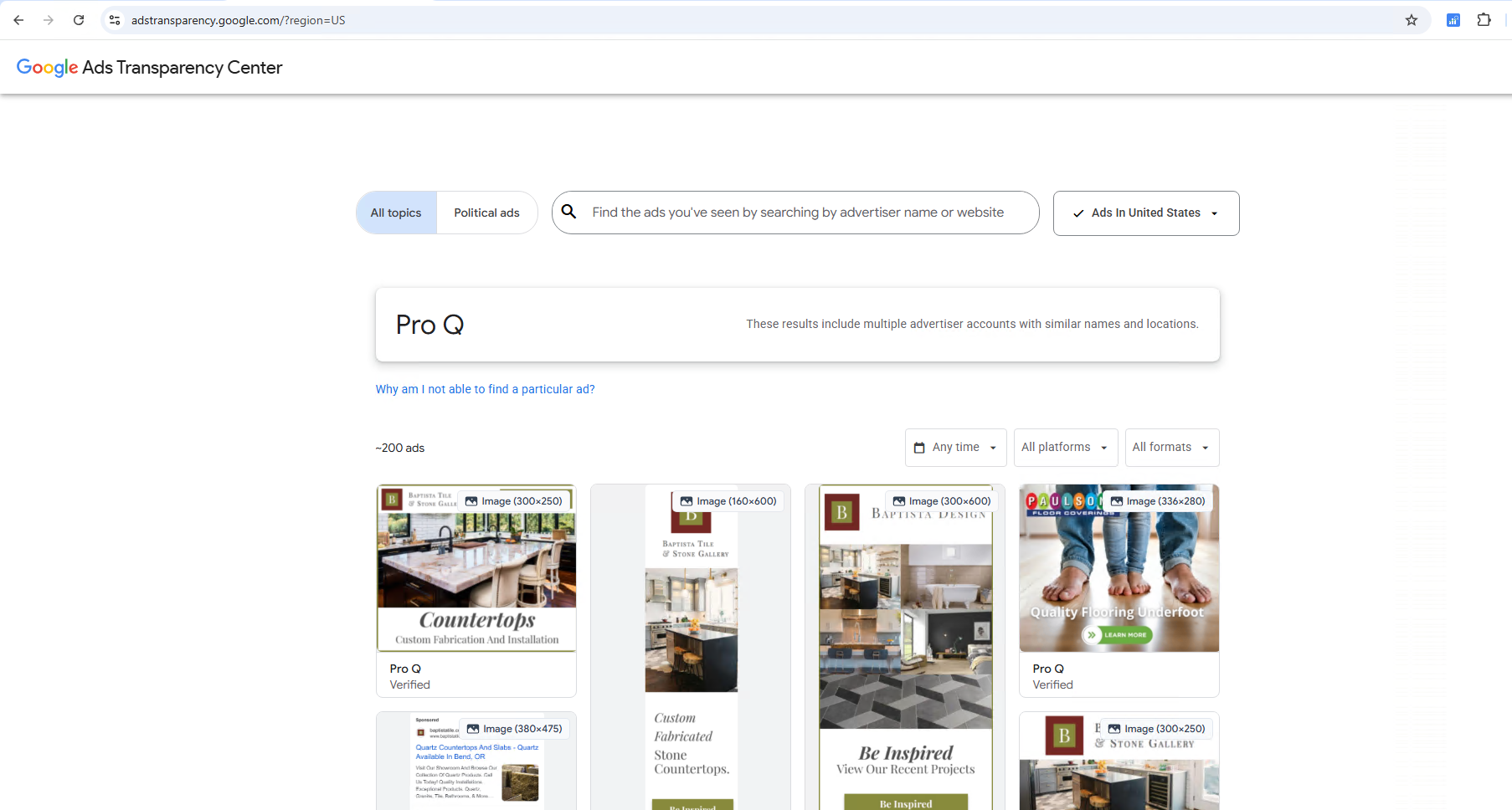
Large brands often have multiple accounts aggregated on a single page.
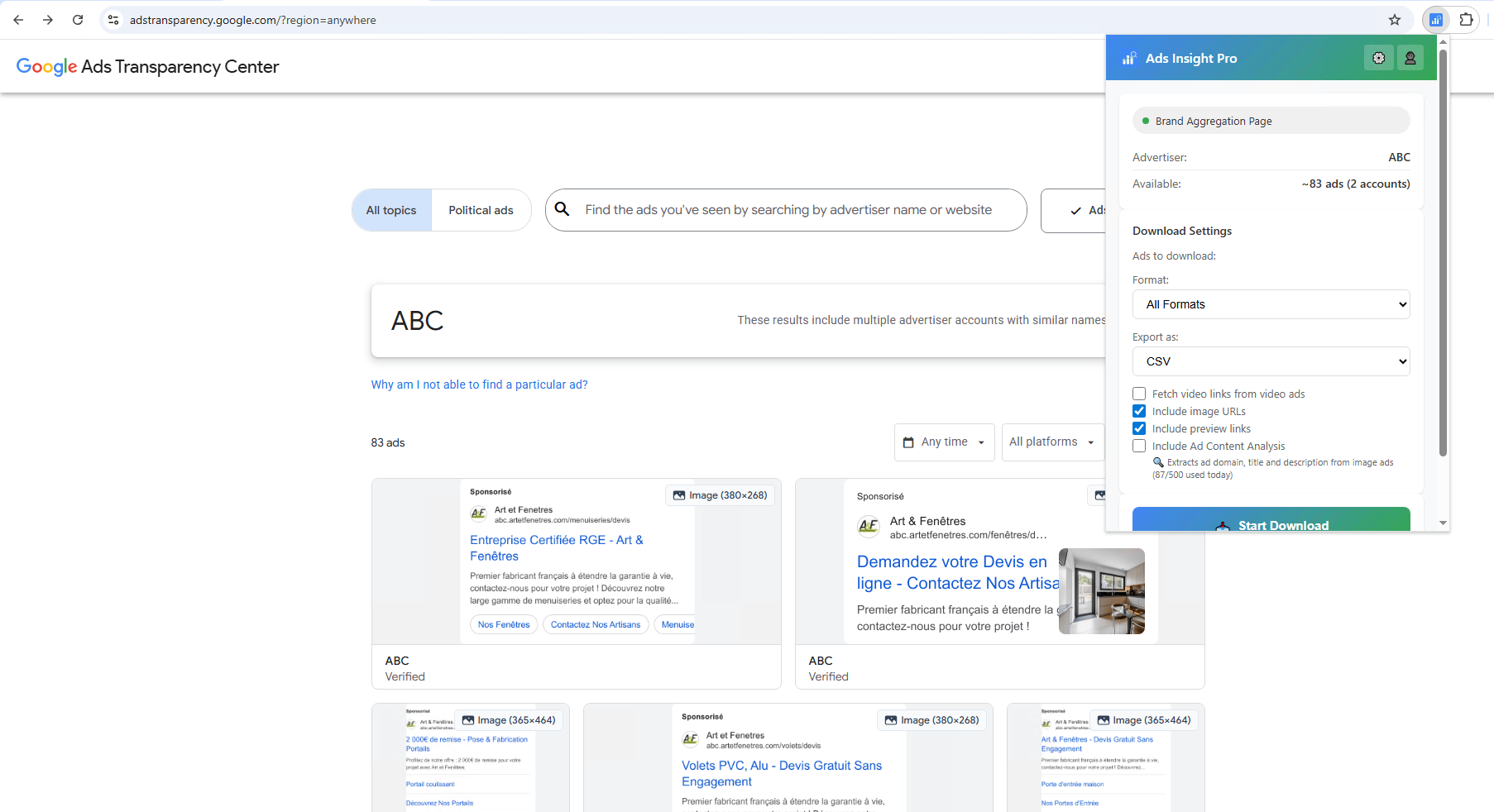
Ads Insight Pro detects brand aggregation pages and can export across multiple advertiser accounts.
7. New Market Entry Research
Goal: Understand the advertising landscape before entering a new market.
How:
- Identify 5-10 key players in your target market
- Search each one and compare their ad strategies
- Note the common ad formats, messaging themes, and visual styles
- Check if the market is dominated by image ads, text ads, or video — this tells you where to invest your creative budget
- Look at ad volume trends: are competitors scaling up or down?
Pro Tips & Hidden Features
Tip 1: Use Domain Search to Find Hidden Advertisers
Many companies run ads through agencies or holding companies. Searching by brand name won't find them. Instead, search by their website domain — this catches all ads regardless of which entity is running them.
Tip 2: The "About This Ad" Shortcut
If you see a competitor's ad anywhere on Google (Search, YouTube, Display), click the three-dot menu → "About this ad." This reveals the legal advertiser name and takes you straight to their Transparency Center page. It's the fastest way to discover who's behind an ad.
Tip 3: Check Parent Company vs. Subsidiary
When searching for a large brand, check both the parent company name and individual brand/product names. For example, searching "P&G" might show corporate ads, while searching "olay.com" shows Olay-specific product campaigns.
Tip 4: Use Ad Count as a Competitive Signal
The total ad count shown for an advertiser is itself a valuable data point. An advertiser running 10,000+ ads is operating at a completely different scale than one running 50. Track this number over time to spot when competitors are scaling up campaigns.
Tip 5: Multi-Language Ad Research
The Transparency Center supports ads in all languages. When researching competitors in international markets, pay attention to whether they localize their ads (translated creatives) or run English ads in non-English markets. This reveals their level of market commitment.
Tip 6: Monitor Creative Velocity
Check how often a competitor refreshes their ad creative. Brands that update creatives every 1-2 weeks have a mature, active marketing team. Brands running the same creative for months may be on autopilot — which could be either a signal of a winning ad or a neglected account.
How to Export Data at Scale
The biggest limitation of the Google Ads Transparency Center is that there's no built-in export functionality. You can browse ads one by one, but if you need to analyze hundreds or thousands of ads, manually copying data isn't practical.
Manual Approach (Free, Slow)
For small-scale research (under 20 ads), you can:
- Open each ad and note the advertiser name, creative, format, and dates
- Screenshot the ad creative
- Manually enter data into a spreadsheet
This works for quick checks but becomes impractical at scale.
Browser Extension Approach (Fast, Scalable)
For serious competitive research, browser extensions can bulk-export ad data directly from the Transparency Center page. This is where tools like Ads Insight Pro come in.
Use the extension popup to set pages, ad format, export type (CSV/JSON/Excel), and optional features, then click “Start Download”.
With a browser extension, you can:
- Bulk export — Download hundreds or thousands of ads to CSV (Free), JSON (Pro+), or Excel (Pro+) with a few clicks
- Structured export fields — Export advertiser ID/name, creative ID, target domain, format, and query region in clean columns
- Image URL & preview links (Pro+) — Include
image_urlandpreview_urlfor faster creative review - Campaign timing fields (Pro+) — Include
start_date,end_date,days_shown, andregionsto identify long-running “winner” ads - Ad Content Analysis (OCR) — Optionally include OCR-extracted fields for image ads:
ad_domain,ad_title,ad_description, plus aconfidencescore (available on all plans with daily limits) - Video link extraction (Enterprise) — Fetch
video_url/youtube_video_idfor YouTube creative analysis - Brand aggregation export — Export ads across multiple advertiser accounts grouped under one brand
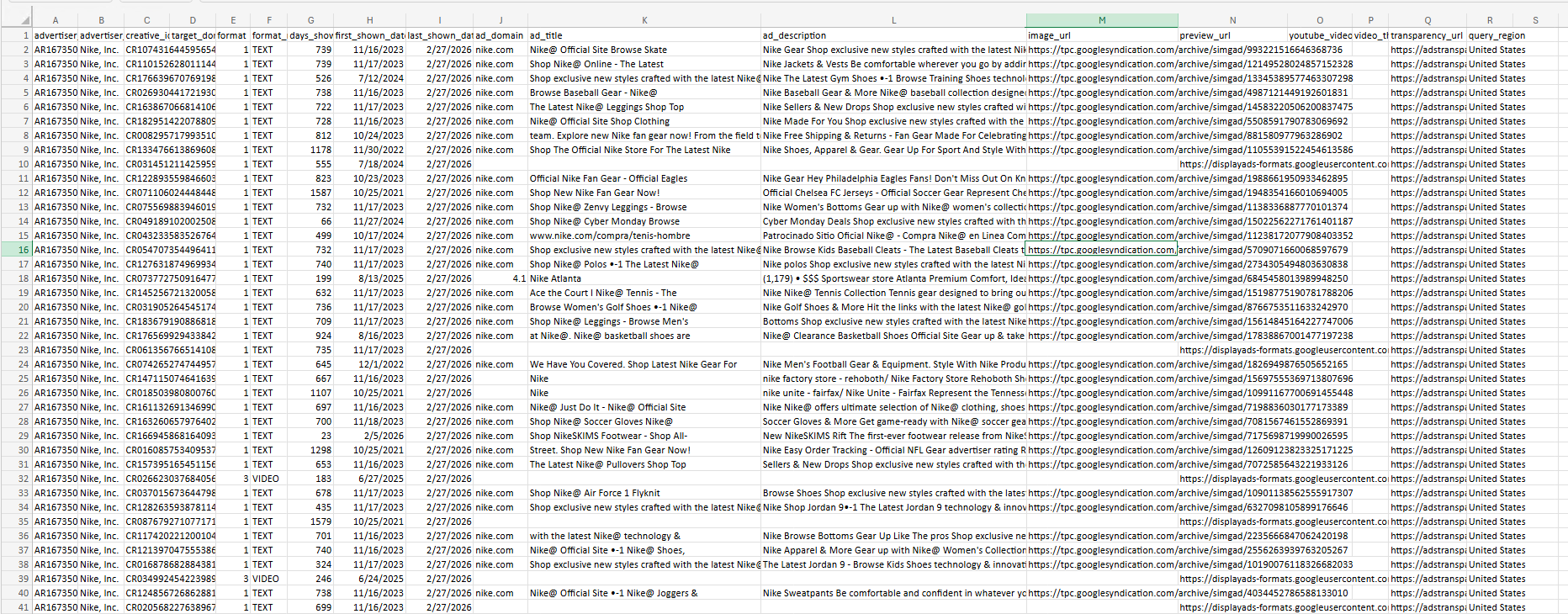
Exported Excel with OCR (Ad Content Analysis) columns for image ads.

Enterprise exports can include video URL fields for video ads.
A Special Advantage: Single Ad Mode (Ad Running Status)
When you open a single ad detail page in Google Ads Transparency Center, Ads Insight Pro can show key “ad running status” metrics directly inside the extension popup — without exporting a file first. This is especially useful when you want to quickly validate whether a specific creative is still active and how long it has been running.
- Days Running (e.g., 59 days)
- First Shown / Last Shown dates
- Currently Active status indicator
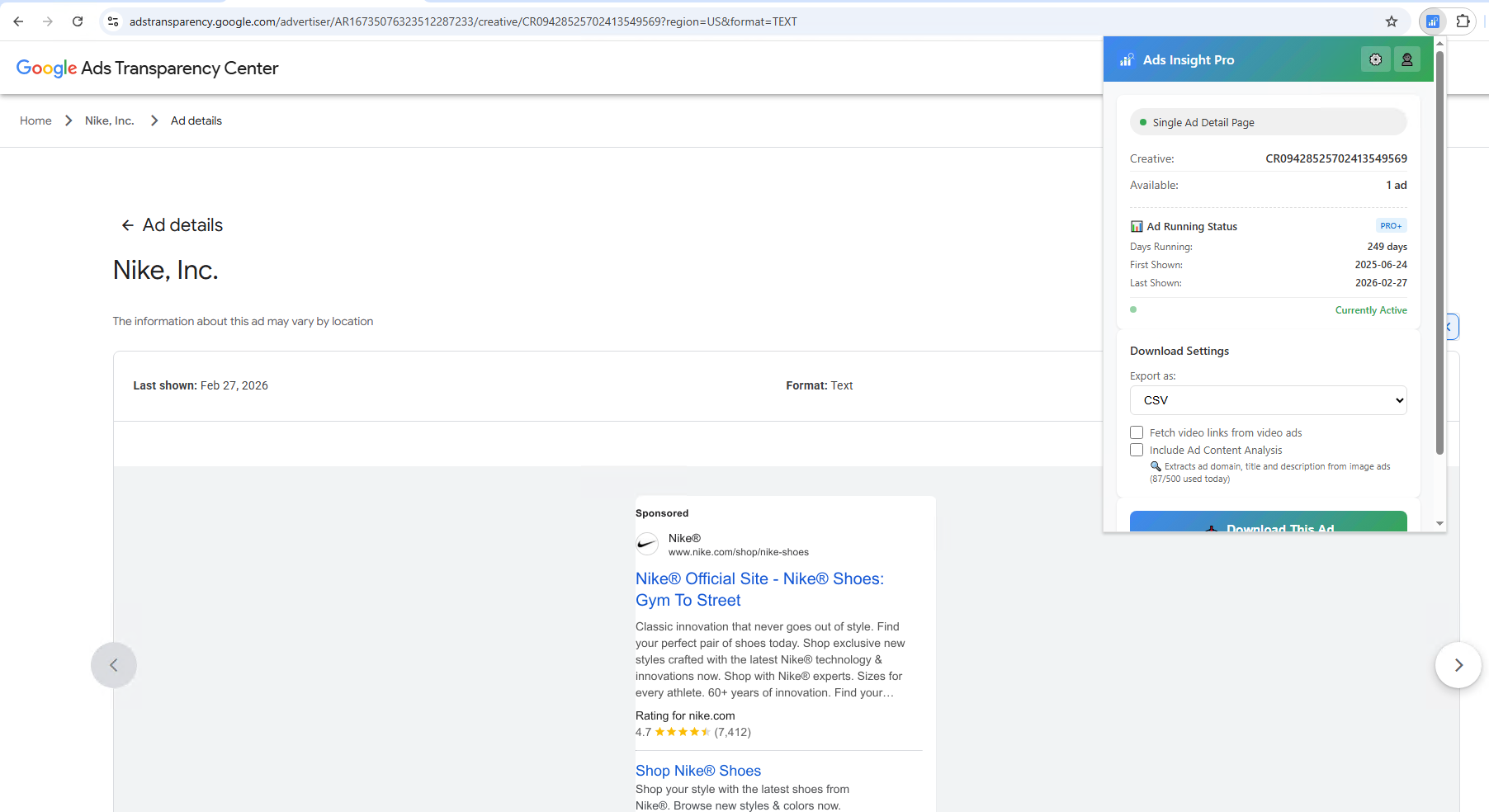
Single Ad Detail Page mode shows ad running status metrics directly in the popup (Pro+).
Ads Insight Pro — Free Google Ads Transparency Exporter
Export competitor ads from Google Ads Transparency Center to CSV/Excel. Free plan includes 100 ads/day with Ad Content Analysis. Available for Chrome, Firefox, and Edge.
Install Free Extension →API/Scraper Approach (Developers)
For programmatic access, services like SerpApi and Apify offer Google Ads Transparency Center APIs and scrapers. These are better suited for developers who need to automate data collection or integrate ad data into custom dashboards. Pricing typically starts at $5-50/month based on volume.
What to Do With Exported Data
Once you have the data in a spreadsheet, here are some analyses you can run:
- Ad format distribution — What percentage of a competitor's ads are text vs. image vs. video? This reveals their channel strategy.
- Landing page analysis — Group ads by target domain to see which landing pages receive the most ad traffic.
- Creative clustering — With Ad Content Analysis data, group image ads by headline or description to identify messaging themes.
- Regional comparison — Compare ad volumes across regions to understand geographic priorities.
- Temporal analysis — Use first/last shown dates to chart when ads launch and retire, revealing campaign cycles.
Frequently Asked Questions
Is using the Google Ads Transparency Center legal?
Yes. The Transparency Center is a public tool created by Google specifically for transparency. Accessing and viewing the data is completely legal. Google designed it to be used by the public, researchers, and marketers alike.
Why can't I find a competitor's ads?
There are several possible reasons: (1) They haven't completed Google's advertiser verification, (2) they advertise under a different legal entity name, (3) they run ads through an agency account, or (4) they've paused all campaigns. Try searching by their website domain instead of their brand name.
How often is the data updated?
Google states that ads typically appear in the Transparency Center within 24-72 hours of going live. The data is not real-time, but it's close enough for competitive research purposes.
How far back does the data go?
For political and election ads, data goes back to 2018 (7+ years). For standard commercial ads, the retention period is shorter and varies — you can use the "Anytime" filter or a custom date range to see all available data. In practice, non-political ads typically remain accessible for weeks to months.
Can I see how much competitors spend on ads?
No. The Transparency Center does not show spend data for commercial advertisers. For EU political ads, some spend information is available. For commercial spend estimates, you'd need a separate tool like SpyFu or Semrush.
What's the difference between Google Ads Transparency Center and Meta Ad Library?
Google Ads Transparency Center covers Search, YouTube, Display, Shopping, Maps, Play, and Gmail ads. Meta Ad Library covers Facebook, Instagram, Messenger, and WhatsApp ads. They serve different ecosystems. For comprehensive competitive research, you should use both.
Start Exporting Google Ads Data Today
Stop manually browsing the Transparency Center. Export competitor ads to CSV/Excel in one click with Ads Insight Pro. Free plan includes 100 ads/day.